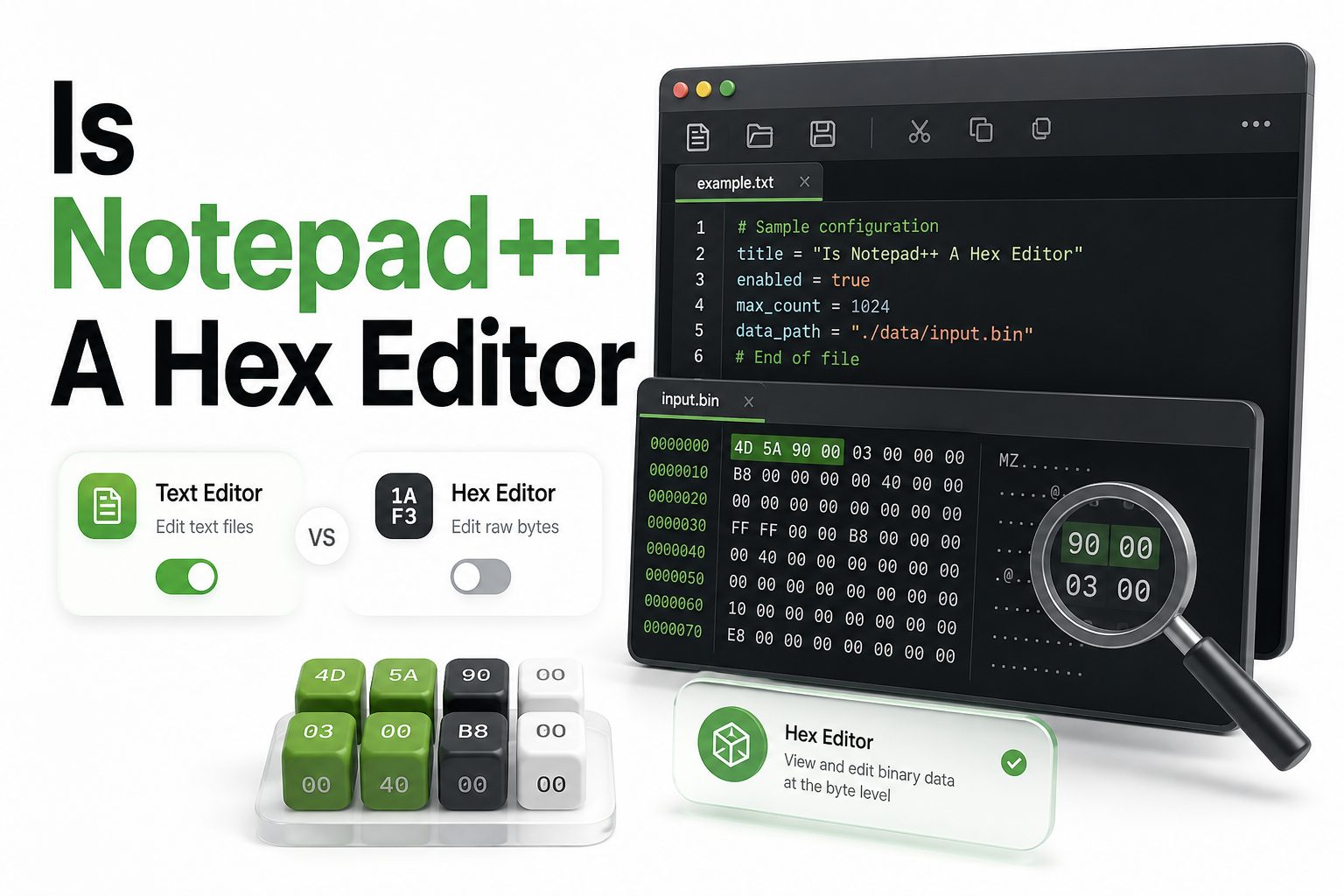
Is notepad++ a hex editor is a common question because Notepad++ feels far more capable than a basic text editor. It opens many file types, supports plugins, highlights code, handles large text files better than standard Notepad, and gives users a surprising amount of control over editing workflows. That flexibility naturally leads many people to wonder whether it can also inspect or modify raw binary data.
The short answer is that Notepad++ is not a true hex editor by default. It is primarily a source code and plain-text editor. However, with the right plugin, it can display and edit files in hexadecimal form. That distinction matters because hex editing is different from normal text editing. When you work with executable files, firmware, databases, disk images, or corrupted files, a small change can alter the file structure completely. This article explains what Notepad++ can do, where it falls short, and when a dedicated hex editor is the better choice.
What Notepad++ Is Built to Do
Notepad++ is designed as a lightweight text and code editor for Windows. Its strengths include syntax highlighting, search and replace, tabbed editing, macros, encoding support, and plugin extensibility. These features make it popular among developers, system administrators, writers, and technical users who work with structured text.
Its editing model is still based on text. That means it expects files to contain characters that can be interpreted through encodings such as UTF-8, ANSI, or UTF-16. When a file contains raw binary data, Notepad++ may show unreadable symbols, missing characters, or content that does not represent the file accurately.
What a Hex Editor Actually Does
A hex editor displays the raw bytes of a file in hexadecimal notation. Instead of treating content as readable text, it shows each byte as a two-digit hex value, usually alongside an ASCII preview. This lets users inspect the real byte-level structure of a file.
Hex editors are used for tasks such as file repair, malware analysis, reverse engineering, save file modification, firmware inspection, and binary comparison. They are not limited by text encoding in the same way a normal editor is. A proper hex editor lets you edit bytes without accidentally transforming the file through text handling.
Key facts about Notepad++ and hex editing
- Notepad++ is not a native hex editor.
- It can support hex viewing through plugins.
- The Hex Editor plugin adds byte-level viewing and editing features.
- Binary files may not display safely in normal Notepad++ text mode.
- Dedicated hex editors are better for serious binary work.
- Notepad++ is best for text, code, configuration files, logs, and scripts.
Can Notepad++ Open Binary Files
Notepad++ can open many binary files, but opening a file is not the same as reading it correctly. When you open a binary file in standard text mode, Notepad++ tries to interpret bytes as characters. This can make the file look broken even when the file itself is fine.
In some cases, simply saving a binary file after opening it in text mode can damage it. Line endings, null bytes, character encoding, and invisible control characters may be handled in ways that are harmless for text but dangerous for binary data. That is why caution is necessary.
How the Hex Editor Plugin Changes Notepad++
The Hex Editor plugin gives Notepad++ the ability to display file bytes in hexadecimal form. With it installed, users can view hex values, inspect offsets, and make byte-level changes. This makes Notepad++ more useful for occasional binary inspection or small edits.
Still, plugin-based hex editing is not the same as using a full dedicated hex editor. The plugin depends on compatibility with your Notepad++ version, and its features may be more limited. For quick checks, it can be convenient. For complex binary work, it may feel restrictive.
Comparison table
Tool type | Best use | Main limitation
Notepad++ text mode | Editing code, logs, scripts, and configuration files | Does not safely represent raw binary data
Notepad++ with Hex Editor plugin | Occasional hex viewing and simple byte edits | Plugin support and feature depth may vary
Dedicated hex editor | Serious binary editing, comparison, file repair, and analysis | May be less convenient for everyday text editing
How to Use Notepad++ as a Hex Editor
To use Notepad++ as a hex editor, you typically need to install a hex editing plugin through the Plugins Admin feature. Once installed, the plugin adds menu options that let you switch a file into hex view. The exact labels may vary by plugin version.
After enabling hex view, the file is shown as byte values rather than normal text. You can inspect offsets, change values, and compare the hex side with the readable character preview. Before editing, always create a backup copy of the original file to avoid permanent damage.
Installing the Hex Editor Plugin
Open Notepad++ and go to the Plugins menu. If Plugins Admin is available, search for a hex editor plugin, select it, and install it. Notepad++ may need to restart after installation. Once restarted, the new plugin options should appear in the Plugins menu.
If the plugin is not listed, you may need to check compatibility with your installed version. Some plugins are maintained more actively than others, and not every plugin works with every release. For plugin-related help, see [Internal Link: Notepad++ Plugin Installation Guide].
When Notepad++ Is Good Enough for Hex Work
Notepad++ can be good enough when you only need to inspect a file briefly. For example, you might check a file signature, verify whether a file starts with a known header, look for readable strings, or make a very small controlled byte change.
It also works well when you already use Notepad++ and do not want to install another tool for a minor task. If the file is not critical and the edit is simple, the plugin approach can save time while keeping your workflow familiar.
Practical uses for Notepad++ hex viewing
- Checking whether a file begins with a known magic number
- Viewing hidden control characters in a file
- Inspecting unusual encoding problems
- Looking for readable strings inside a binary file
- Making a small test edit to a copied file
- Comparing visible text with underlying byte values
When You Should Use a Dedicated Hex Editor
A dedicated hex editor is the better choice when accuracy and control matter. If you are editing executable files, firmware, databases, disk images, archives, or recovery files, you need tools built specifically for binary structures. These programs are designed to preserve byte integrity.
Dedicated tools often include features such as binary comparison, checksums, templates, sector editing, data interpretation, bookmarks, and structured views. These features reduce risk and make complex work easier. Notepad++ with a plugin can help, but it does not replace a specialized tool.
Risks of Editing Hex Data in Notepad++
The biggest risk is saving a binary file incorrectly. If the editor or plugin mishandles encoding, line endings, file size, or null bytes, the saved file may become unusable. This is especially risky with compressed files, executables, game saves, and firmware images.
Another risk is misunderstanding what you are changing. Hex values are exact byte data, not decorative symbols. Changing one byte can affect checksums, file offsets, permissions, signatures, or program behavior. Always work on a duplicate file and document any changes you make.
Hex Editing Safety Checklist
- Make a backup before opening the file.
- Work on a copy, not the original.
- Confirm the file type before editing.
- Note the exact offset and value you change.
- Avoid saving from normal text mode.
- Test the edited file in a controlled way.
- Use a dedicated hex editor for important files.
Hex View Versus Text Encoding in Notepad++
Text encoding tells an editor how to translate bytes into characters. UTF-8, UTF-16, and ANSI can all represent text differently. Notepad++ is strong at handling these encodings for human-readable content, but binary files do not always follow character encoding rules.
Hex view removes that translation layer and shows the bytes directly. This is why a file that looks unreadable in text mode can make more sense in hex mode. You may see recognizable headers, repeated byte patterns, null padding, or embedded readable strings.
Why Some Files Look Broken in Notepad++
Files look broken in Notepad++ when their bytes do not map cleanly to printable characters. Binary files often contain null bytes, control codes, compressed data, and byte sequences that have no readable equivalent. Notepad++ may show odd symbols or blank spaces.
This does not mean the file is corrupted. It usually means the file is not meant to be read as plain text. A hex editor is needed because it represents every byte consistently, even when those bytes have no normal text meaning.
Signs you need hex mode
- The file displays strange symbols.
- Large sections appear blank or unreadable.
- The file contains many null characters.
- Saving the file could change its structure.
- You need to inspect exact byte offsets.
- You are checking file headers or signatures.
Common Hex Editing Tasks in Notepad++
One common task is checking a file signature. Many file types begin with recognizable bytes, such as PDF files, PNG images, ZIP archives, and executable files. By viewing the opening bytes, you can often confirm whether a file extension matches the real file type.
Another task is finding embedded text inside a binary file. Some binaries include readable strings such as paths, version names, error messages, or configuration fragments. Notepad++ with hex support can help you inspect these areas without relying on the file’s normal format.
File Header Checks
A file header is a short sequence of bytes near the beginning of a file. It often identifies the format. For example, many image, archive, and document formats include signature bytes that applications use to recognize the file correctly.
Checking headers can help diagnose renamed files, damaged downloads, or incorrect extensions. If a file named image.jpg does not contain JPEG header bytes, the extension may be misleading. A hex editor lets you confirm this quickly and accurately.
Searching for Readable Strings
Readable strings inside binary files can provide useful clues. They may show software names, URLs, paths, configuration keys, or version numbers. This is helpful when checking unknown files or diagnosing application behavior without fully reverse engineering the file.
However, visible strings do not tell the whole story. Binary files contain structured data that may depend on offsets, lengths, and checksums. Treat strings as clues, not proof. For deeper analysis, use tools designed for binary inspection.
Tips for better results
- Use hex mode before making edits.
- Keep the original file untouched.
- Change only values you can identify.
- Avoid broad search-and-replace on binary data.
- Record original values before replacing them.
- Compare the edited file with the backup afterward.
Notepad++ Hex Editing for Developers
Developers may use Notepad++ hex editing to inspect generated files, debug encoding issues, check protocol payloads, or verify exported data. It is especially useful when a text file contains hidden characters that break parsing, imports, or automated processing.
For example, a configuration file may contain a byte order mark, unexpected carriage return, or non-printing character. In normal text view, the problem can be difficult to spot. In hex view, the exact byte sequence becomes visible and easier to correct.
Notepad++ Hex Editing for Non-Developers
Non-developers may use hex editing to verify file types, inspect unknown downloads, or recover readable fragments from damaged files. The interface of Notepad++ can feel less intimidating than specialized binary tools, especially for small tasks.
Still, non-developers should be careful with edits. Viewing is usually safe, but saving changes can have consequences. If the file matters, make a duplicate first. If the file belongs to an application, database, or device, use a dedicated recovery or repair tool.
Useful Internal Resource
If your main goal is working with text, scripts, or configuration files, Notepad++ remains one of the most practical editors for Windows users. For related editor workflows, see [Internal Link: Best Text Editors for Coding and Configuration Files].
That kind of resource fits naturally alongside this topic because many people searching for hex editing are really trying to solve a file inspection problem. Sometimes the answer is hex view. Other times, the right solution is encoding cleanup, file conversion, or safer text editing.
Notepad++ Compared With Dedicated Hex Editors
Dedicated hex editors usually provide more reliable binary editing features than Notepad++ plugins. They may offer offset navigation, byte grouping, templates, checksums, compare views, search by byte pattern, and controlled overwrite modes. These features matter when precision is required.
Notepad++ wins on convenience. Many users already have it installed, and its plugin system makes occasional hex viewing easy. The tradeoff is that its core design remains text editing. For routine coding and quick inspection, it is useful. For serious binary work, use a purpose-built tool.
Best Alternatives to Notepad++ for Hex Editing
Popular hex editors include tools built specifically for binary inspection and editing. These applications often handle large files, structured data, and file comparisons more confidently than a general text editor with an add-on. They are better suited for repair and analysis tasks.
The right alternative depends on your operating system, budget, and technical needs. Some users only need a free viewer. Others need advanced features such as templates, scripting, forensic views, or disk editing. Choose based on the risk and complexity of the file.
Alternative tool checklist
- Supports large files without freezing
- Preserves binary data accurately
- Includes byte-level search
- Offers compare or diff tools
- Shows offsets clearly
- Provides checksum or hash support
- Allows overwrite mode and insert mode control
- Has active maintenance and documentation
Performance With Large Files
Notepad++ can handle many large text files well, but binary files are a different matter. When using plugins, performance depends on the plugin, file size, available memory, and the complexity of the operation. Very large files may slow down or fail to load.
Dedicated hex editors are usually more dependable for big files because they are built to read data in chunks. This matters for disk images, memory dumps, logs with binary segments, and large archives. If performance becomes a problem, switch tools early.
Accuracy and File Integrity
Accuracy is the main reason hex editors exist. A good hex editor shows the file exactly as it is stored and saves changes without applying text transformations. That level of control is essential when every byte has meaning.
Notepad++ can be accurate with the right plugin and workflow, but it introduces more moving parts. The editor, plugin, file type, and save process all matter. If a file is valuable, production-critical, or difficult to replace, use a dedicated hex editor.
Important facts before editing
- Binary data is not forgiving.
- File extensions do not guarantee file format.
- A single byte can change file behavior.
- Checksums may fail after editing.
- Some files contain internal offset tables.
- Compressed files often break after casual edits.
- Hex editing should be done only when the target value is known.
Is Notepad++ a Good Choice for Beginners
Notepad++ can be a friendly entry point for beginners who want to see what hex data looks like. The interface is familiar, installation is simple, and switching between text and plugin features can make early learning less intimidating.
However, beginners should start by viewing files, not editing them. Open copies of sample files and compare what appears in text view and hex view. This builds a practical sense of how bytes, characters, encodings, and file formats relate.
Best Beginner Practice Files
Good practice files include plain text documents, small images, CSV files, ZIP files, and copied configuration files. These let beginners see clear differences between readable text and structured binary data. Avoid system files, executables, and anything connected to active applications.
A useful exercise is to create a small text file, type a few words, and view it in hex mode. You can see how each character maps to a byte value. Then try a file with symbols or accented characters to see how encoding changes the byte pattern.
Beginner Safety Tips
Do not start by editing random files from your computer. Make a test folder, copy sample files into it, and practice there. Keep filenames clear so you know which file is original and which one was edited.
Also, avoid assuming that a visible word can be changed freely. If the new text is longer or shorter than the original, it may shift data and break the file. Byte-for-byte replacement is safer than changing file length.
Beginner tips list
- Practice on copied files only.
- Start with small files.
- Learn how offsets work.
- Compare text view and hex view.
- Replace values only with equal-length values.
- Avoid editing compressed or executable files at first.
- Keep notes on every change.
Common Misconceptions About Notepad++ and Hex Editing
A common misconception is that opening a binary file in Notepad++ means the file is being viewed as hex. It does not. Standard Notepad++ view still treats content as text, even when the result looks strange or unreadable.
Another misconception is that plugins turn Notepad++ into a complete replacement for a dedicated hex editor. Plugins add useful capability, but they do not change the editor’s main purpose. For many users, that is enough. For advanced users, it may not be.
Misconception About Strange Characters
Strange characters do not always mean corruption. They often appear because binary bytes are being interpreted through a text encoding. A file can be perfectly healthy while still looking meaningless in a plain-text editor.
This is especially common with images, archives, databases, and compiled programs. These files contain data arranged for software, not human reading. Hex mode gives a clearer view because it does not depend on converting every byte into a readable character.
Misconception About Safe Saving
Some users assume that if a file opens, it can be safely saved. That assumption is risky with binary data. Text editors may normalize line endings, alter encoding markers, or remove characters they cannot represent properly.
Hex mode reduces this risk, but caution is still required. Save only after confirming you are using the plugin’s intended binary editing mode. When in doubt, close without saving and reopen a backup in a proper hex editor.
Do and do not list
Do:
-
- Use Notepad++ for quick hex inspection.
- Keep backups before editing.
- Use plugins carefully.
- Verify changes after saving.
Do not:
- Edit original binary files directly.
- Save binary files from normal text view.
- Assume strange characters mean damage.
- Use Notepad++ for high-risk binary repair.
Final Verdict on Notepad++ as a Hex Editor
Notepad++ is best described as a text editor that can gain hex editing features through plugins. That makes it useful for occasional inspection, simple byte edits, and learning how file data appears at a lower level. It is practical, familiar, and easy to add to an existing workflow.
For professional binary editing, forensic work, firmware changes, or critical file repair, a dedicated hex editor is the safer choice. The more valuable or complex the file, the more important specialized tooling becomes. Convenience should not outweigh file integrity.
Conclusion
Notepad++ is a powerful editor, but its native strengths are text, code, scripts, logs, and configuration files. It can open many kinds of files, yet binary data requires a different approach because raw bytes do not behave like normal characters. With a hex editing plugin, Notepad++ can view and edit hexadecimal data, making it useful for quick inspections and small controlled changes.
The important point is knowing the limit. If your task involves checking a file header, viewing hidden characters, or making a tiny edit to a copied file, Notepad++ can work well. If you are repairing damaged files, changing firmware, editing executables, or working with data that cannot be replaced, use a dedicated hex editor. So, is notepad++ a hex editor in the strict sense? No, but it can act like one for basic tasks when properly extended.
FAQ
Can Notepad++ edit hex files?
Yes, Notepad++ can edit hex files if you install a compatible hex editor plugin. Without a plugin, it works as a text editor and does not provide proper byte-level editing.
Is the Hex Editor plugin safe to use?
The plugin is generally safe for viewing files, but editing always carries risk. Work on copies, avoid normal text saving, and use a dedicated hex editor for important binary files.
Can Notepad++ open EXE files in hex mode?
Yes, with a hex editor plugin, Notepad++ can display EXE files in hex mode. Editing executable files is risky because even a small byte change can prevent the program from running.
Why does a binary file look unreadable in Notepad++?
Binary files look unreadable because Notepad++ tries to interpret raw bytes as text characters. Many binary values do not map to printable characters, so the display appears strange or broken.
What is better than Notepad++ for hex editing?
A dedicated hex editor is better for serious work. It usually offers safer binary saving, offset tools, byte search, file comparison, checksums, and better support for large or complex files.
0 Comments