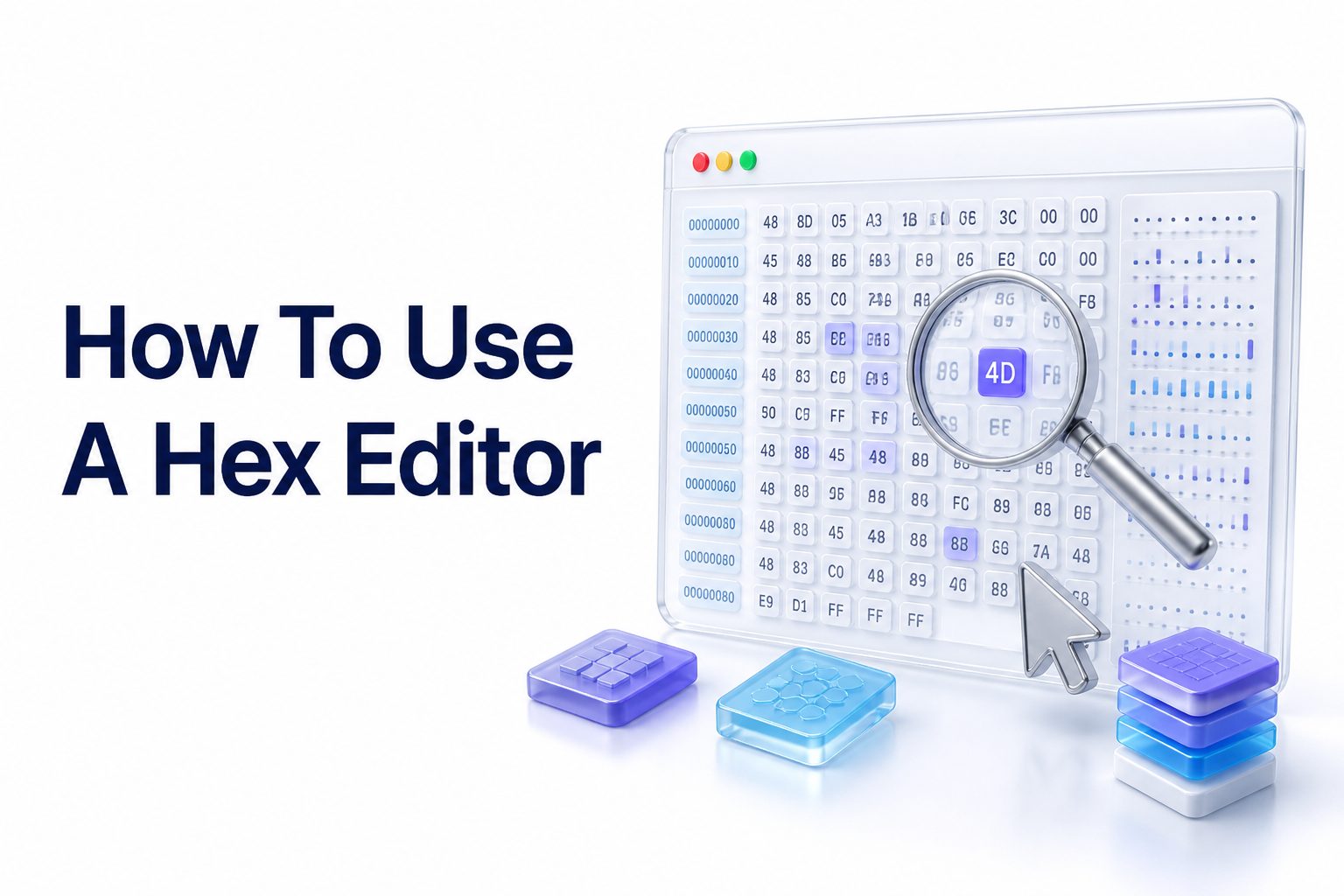
A hex editor lets you view and modify the raw data stored inside a file. Instead of showing formatted text, images, or application screens, it displays the individual bytes that make up the file. Each byte is commonly represented by two hexadecimal characters, while a text preview appears beside it when the data matches readable characters.
Learning how to use a hex editor can help you inspect file headers, repair small data errors, examine saved-game files, troubleshoot corrupted documents, and study how software stores information. It is also useful for programmers, IT technicians, security researchers, and curious users who want to look beyond a file’s normal appearance.
The process is not difficult, but careless editing can permanently damage a file. A safe workflow involves creating a backup, identifying the correct location, making small changes, and checking the result afterward. This guide explains the main tools, techniques, and precautions you need to work confidently with hexadecimal data.
What a Hex Editor Does
A hex editor displays the contents of a file as bytes rather than as a normal document. The left side usually shows an offset, the center contains hexadecimal values, and the right side presents an ASCII or text interpretation. Together, these areas reveal both the file’s position data and its possible character content.
Unlike a standard text editor, a hex editor can open binary files without converting or hiding their contents. It treats the file as a sequence of raw values, including zeros, control codes, compressed data, image information, and executable instructions. Every change affects the actual bytes saved on disk.
Hexadecimal Values and Bytes
Hexadecimal uses sixteen symbols: 0 through 9 and A through F. One hexadecimal character represents four bits, so two characters represent one byte. For example, the hexadecimal value 41 corresponds to the decimal value 65 and commonly represents the capital letter A in ASCII encoding.
A byte can store values from 00 to FF, which equals 0 to 255 in decimal. File formats use these values to represent numbers, colors, instructions, dimensions, timestamps, and text. You do not need advanced mathematics, but knowing this range makes the editor’s display much easier to read.
Choosing the Right Hex Editor
The best hex editor depends on your operating system, experience, and intended task. Beginners may prefer a clean interface with search, undo, bookmarks, and automatic backups. More advanced users may need scripting, binary comparison, templates, disk editing, or support for very large files.
Before installing an editor, check whether it works in read-only mode and whether it can preserve file length during basic edits. Useful features include hexadecimal and decimal offset displays, multiple encoding views, selectable byte ranges, and a clear indicator showing whether you are inserting, deleting, or overwriting data.
Features That Matter Most
A reliable hex editor should offer fast navigation and precise selection. Search tools are especially important because they let you locate text strings or byte patterns without scanning thousands of values manually. An undo history is equally valuable when testing changes or correcting an accidental edit.
For regular file work, look for support for bookmarks, checksums, split views, and binary comparison. A status bar showing the current offset and selected byte count reduces mistakes. If you work with structured formats, templates or data interpreters can label fields such as headers, lengths, flags, and timestamps.
Quick Hex Editor Checklist
- Choose an editor that supports your operating system.
- Confirm that it can open a copy of the target file.
- Check for undo and redo support.
- Make sure search works with both text and hexadecimal values.
- Look for a read-only option when inspecting unknown files.
- Keep the editor updated and download it from a reputable source.
Preparing a File Before Editing
Always make a copy of the original file before making changes. Store the backup in a separate folder and give the working copy a clear name, such as document-test-01.bin. If the file is important, create more than one backup and avoid editing the only available version.
You should also record the file’s original size and, when possible, its checksum. A checksum provides a quick way to confirm that a file changed. If the edited copy fails, you can compare it with the original and return to a known starting point without guessing which bytes were modified.
Working With File Copies
A practical naming system makes experiments easier to track. Keep the untouched original, then create numbered versions after each major change. For example, use image-original.png, image-header-test.png, and image-repaired.png. This approach makes it simple to compare results and reverse an unsuccessful attempt.
Close any program that is using the file before editing it. Applications may overwrite your changes, lock the file, or keep an older version in memory. If the file belongs to an operating system or installed application, make sure you have permission to modify it and know how to restore it.
Reading the Hex Editor Interface
Most hex editors divide the display into three primary areas. The offset column identifies a byte’s location, the hexadecimal panel shows the raw values, and the text panel translates selected bytes into readable characters. Some programs add a fourth area for decoded numbers or file-format information.
Offsets often begin at 00000000 and increase from left to right and top to bottom. If each row contains sixteen bytes, the next row begins sixteen positions later. Selecting a byte usually highlights the matching value in every panel, helping you connect a location with its visible or decoded meaning.
Offsets, Rows, and Selection
An offset is the distance from the beginning of the file to a particular byte. In a file starting at offset 00000000, the byte at offset 00000010 is sixteen bytes from the beginning. Hexadecimal offsets are useful because they match the way technical file documentation describes locations.
Pay attention to whether the editor counts positions from zero or one. Most software uses zero-based offsets, meaning the first byte is position zero. Confusing the displayed offset with a line number can lead to edits in the wrong place, especially when following instructions from a file-format specification.
Opening and Inspecting a Binary File
To begin, launch the hex editor and open a copy of the file. Avoid changing anything during the first inspection. Scroll through the opening bytes, check the file size, and look for readable signatures or text. The first few bytes often provide clues about the file’s format.
Many formats begin with a recognizable file signature, sometimes called a magic number. A PNG image begins with a distinctive eight-byte signature, while a PDF begins with readable characters indicating its format. These signatures can help identify a file even when its extension is missing or incorrect.
Recognizing File Headers
A file header usually appears near the beginning of a file and stores information needed by software. It may contain a signature, version number, dimensions, compression settings, encoding details, or pointers to later sections. The header structure varies widely, so avoid changing values until you know their purpose.
If a file will not open, compare its header with a healthy file created by the same application. A byte-by-byte comparison may reveal a missing signature or altered field. However, similar-looking files can still have different versions, so use comparison as evidence rather than treating every difference as an error.
Searching for Text and Byte Patterns
Searching is one of the safest ways to locate information inside a binary file. Most editors allow searches for ASCII text, Unicode text, hexadecimal sequences, or decimal values. Start with a distinctive phrase, short identifier, or known byte pattern rather than a common character.
When searching for text, select the correct encoding. ASCII uses one byte per basic character, while UTF-16 commonly uses two bytes per character and may include zero bytes between visible letters. If a search returns no result, try another encoding or inspect the text panel for the format used by the file.
Text Encodings in Binary Files
Readable text is not always stored as ordinary ASCII. Applications may use UTF-8, UTF-16 little-endian, UTF-16 big-endian, or a custom character table. The same visible word can therefore appear as very different bytes depending on the encoding and byte order.
Replacing text is safe only when the new value fits the original allocation. If a field reserves ten bytes, inserting a longer phrase may shift every later field and break the file. Overwriting unused space or using a same-length replacement is usually less risky than inserting new bytes.
Important Search Tips
- Search for a distinctive string instead of a common word.
- Try ASCII and Unicode when text is not found.
- Check whether the editor searches the whole file or only a selection.
- Record the offset of every relevant match.
- Verify a match by examining nearby bytes.
- Do not assume every readable phrase is an editable field.
Editing Bytes Without Changing File Size
Most basic repairs involve overwriting existing bytes. You select one or more values, type the replacement, and save the working copy. Overwriting preserves the file’s length, which reduces the chance of shifting offsets used by later structures.
For example, a configuration flag might be stored as 00 for disabled and 01 for enabled. Changing one value may alter the program’s behavior, but only if the field is actually a flag and the surrounding format remains valid. Always test the result with a copy.
Insert Mode and Overwrite Mode
Hex editors commonly provide insert and overwrite modes. Overwrite replaces existing bytes and keeps the file size unchanged. Insert adds new bytes, moving the remaining content forward. Deletion removes bytes and shifts later data backward, which can invalidate internal offsets and length fields.
Use overwrite mode for small, well-documented changes whenever possible. Insert and delete operations require a stronger knowledge of the file format because many formats contain pointers, indexes, checksums, or size values that must be updated after the file length changes.
Editing Text Inside Binary Files
Replacing a readable text string can be useful when correcting a label, changing a test value, or repairing a damaged field. First, count the original bytes and confirm the selected encoding. Then replace the text without altering the allocated length unless the file format specifically supports resizing.
Some programs pad short text with null bytes, spaces, or another filler value. If you shorten a string, the remaining space may need to be filled correctly. Leaving old characters behind can produce unexpected output, while using the wrong filler may make the application reject the file.
A Practical Text Replacement Example
Suppose a binary configuration file contains the ASCII value TESTMODE followed by a null byte. Replacing it with LIVE001 may work if the application expects a seven-character field. Replacing it with a much longer phrase could overwrite the next field and cause parsing errors.
After saving, reopen the file in the hex editor and confirm that the intended bytes changed. Then open it in the application that normally reads it. Check both the visible result and any related behavior, because a file can appear correct while containing a damaged value elsewhere.
Working With Numbers and Byte Order
Numbers in binary files may be stored as one, two, four, or eight bytes. A value that looks like 01 00 may represent 1 in little-endian format, but 256 in big-endian format. The order of bytes determines how the individual values combine into a larger number.
Before editing a numeric field, determine its width, signedness, and byte order. A four-byte integer may represent a file length, timestamp, image width, or pointer. Changing only one byte can create a completely different number, so use the editor’s numeric interpretation tools when available.
Little-Endian and Big-Endian Values
Little-endian storage places the least significant byte first. The decimal value 258 can appear as 02 01 in a two-byte little-endian field, while big-endian storage represents it as 01 02. Both sequences are valid, but they produce different results under each interpretation.
File specifications, programming documentation, or comparisons with known values can reveal the byte order. If you know a field should contain a familiar number, calculate how that number would appear under both formats and compare the result with the bytes in the file.
Examining Images, Documents, and Archives
A hex editor can reveal useful details in common media and document files. Image headers may contain dimensions, color depth, compression information, or metadata. Documents may include author names, application versions, and embedded text. Archives usually contain file names, directory records, and compressed sections.
Binary data may look random because it is compressed or encoded. Do not conclude that a file is empty simply because the text panel contains little readable content. For a related reference, see [Internal Link: Hexadecimal File Formats] when working with signatures and structured file sections.
Inspecting Metadata Carefully
Metadata can appear in predictable sections, but not every visible string is safe to change. A camera model, document title, or comment may be stored as text, while its length and position are tracked elsewhere. Altering the text without updating its length can make the file unreadable.
If your goal is simply to remove metadata, use a dedicated metadata tool when possible. A hex editor is valuable for inspection and specialized repair, but it does not automatically interpret every field. The safest method depends on whether you need analysis, editing, or privacy cleanup.
Comparing Files Byte by Byte
Binary comparison shows exactly how two files differ. This is useful when you create two versions of a document with one changed setting, compare a working file with a corrupted copy, or identify where an application stores a particular value.
A comparison tool may highlight inserted, deleted, or changed bytes. Focus on consistent differences across several test files. If changing one program setting always alters the same offset, that location is a strong candidate for the related field, though further testing is still necessary.
Using Controlled Experiments
Change one variable at a time and save a separate file for each test. For example, create one copy with a name changed, another with a value changed, and a third with a different option enabled. Comparing each result with the original makes the responsible bytes easier to isolate.
Keep a small experiment log containing the file name, modification, offset, old bytes, new bytes, and test result. This habit prevents repeated work and helps you return to a known state. It also creates a useful record if someone else needs to review the repair.
Comparison Workflow
- Create an untouched original and several working copies.
- Change one visible setting or field.
- Save the modified copy under a new name.
- Compare it with the original.
- Note the changed offsets and byte sequences.
- Repeat the test to confirm the pattern.
- Restore the original before testing a different variable.
Repairing a Damaged File
Hex editing can sometimes repair a file with a damaged header, incorrect signature, or isolated byte error. The best candidates are files where you have a healthy example from the same program and version. Compare the two files to identify a likely missing or altered value.
Do not replace large sections based on visual similarity alone. Binary formats may include checksums, compression blocks, internal offsets, and records that depend on one another. A repair that fixes the header but ignores a checksum can leave the file unusable.
Restoring a Missing Header
If a file’s opening bytes are missing, a matching file may reveal the expected signature and header structure. Copying a known header can work when both files share the same format and compatible settings. It is less reliable when the header contains file-specific lengths or offsets.
After restoring a header, test the file in the original application and inspect whether the displayed content is complete. If the program reports a checksum or corruption error, the damaged file may require format-specific repair rather than a simple byte replacement.
Using Hex Editors for Software and Games
Developers use hex editors to inspect compiled resources, verify output, and investigate unexpected data. Users may also encounter tutorials involving saved-game values, configuration flags, or executable resources. These tasks require caution because a small change can affect program stability or violate software terms.
When examining an executable, work on a copy and avoid running modified files until you know their source and purpose. A changed executable may trigger security software, fail a digital signature check, or behave unpredictably. For safe software analysis, dedicated debugging and reverse-engineering tools may be more suitable.
Save-Game and Configuration Edits
Save files often contain recognizable names, scores, inventory values, or settings, but the values may be compressed, encrypted, checksummed, or encoded. A visible number in the text panel is not necessarily the value shown in the game or application.
Make one small change, test it, and keep the original save file untouched. If the program rejects the edited file, restore the backup immediately. Check the software’s rules before modifying online accounts, competitive games, or files protected by licensing and anti-cheat systems.
Avoiding Common Hex Editing Mistakes
The most common mistake is editing the wrong offset. This happens when a user follows instructions for a different file version, confuses hexadecimal and decimal positions, or changes the first matching byte pattern without checking its context.
Another frequent problem is changing the file length unintentionally. Insert and delete operations shift every later byte, which can invalidate pointers and indexes. Other mistakes include saving over the original, ignoring encoding, forgetting checksums, and testing only whether the file opens.
Signs of a Risky Edit
An edit deserves extra caution when the target file is compressed, encrypted, digitally signed, or frequently updated by another program. Risk also increases when the instructions do not identify the exact version, offset, byte sequence, or expected result.
If a change produces strange behavior, stop testing the damaged copy and return to the backup. Compare the files to identify what changed. A controlled rollback is faster and safer than continuing to make random adjustments in an attempt to repair the first mistake.
Validating and Saving Your Changes
After editing, save the file under a new name and close the editor. Reopen the saved copy to confirm the bytes were written correctly. Then test it in the application that normally uses the file, checking both the expected change and unrelated features.
For important files, calculate a new checksum and keep notes about the modification. If the file format has a validation utility, run it. Some applications repair or normalize files when opening them, so compare the file again afterward if exact byte preservation matters.
Keeping a Change Record
A change record should include the original file name, backup location, editor used, offset, old bytes, new bytes, date, and test result. This information is especially useful when several versions are involved or when an edit must be repeated later.
You can also add a short explanation of why the change was made. A clear record turns an uncertain experiment into a repeatable process. If the result fails, the notes show exactly what to undo rather than forcing you to start from memory.
Improving Your Hex Editing Skills
Start with small, unimportant files and formats that have public documentation. Practice locating text, interpreting offsets, changing same-length values, and comparing original and modified copies. These exercises build accuracy without putting valuable data at risk.
Once the basics are comfortable, study file signatures, data types, byte order, checksums, compression, and encoding. A format specification is often more useful than guesswork. You can also inspect files created by a program and compare the changes caused by one setting at a time.
Useful Supporting Tools
A hex editor works well alongside checksum calculators, file identification utilities, binary comparison programs, metadata viewers, and format validators. Each tool answers a different question, reducing the temptation to make assumptions from the raw display alone.
For broader background, read [Internal Link: Binary File Basics] before analyzing unfamiliar structures. Combining documentation with controlled tests gives you a clearer picture of what each byte represents and lowers the risk of damaging a working file.
A Safe Workflow for Every Editing Task
A repeatable workflow keeps technical file editing manageable. Begin by identifying the file and preserving the original. Next, inspect the header, search for known data, and record possible offsets. Make the smallest reasonable change, save a new version, and test the result.
If the change fails, restore the previous version and reassess the evidence. Do not make several unrelated edits at once because you will not know which one caused the problem. Careful testing may feel slower initially, but it saves time when a file contains hidden dependencies.
Safe Hex Editing Workflow
- Identify the file type and confirm you have permission to edit it.
- Create and verify a backup.
- Record the original size and checksum.
- Inspect the header and relevant nearby data.
- Search for a distinctive text or byte pattern.
- Confirm the offset and encoding.
- Use overwrite mode for same-length changes.
- Save a new copy instead of replacing the original.
- Test the result in the normal application.
- Keep a record of the successful edit.
Conclusion
A hex editor provides a direct view of the bytes behind documents, images, archives, configuration files, and many other digital objects. Once you become familiar with offsets, hexadecimal notation, encodings, byte order, and file headers, the display becomes much less intimidating.
The safest approach is methodical. Preserve the original, work from a copy, identify the correct field, change as little as possible, and validate the result in the application that uses the file. Overwrite operations are generally safer than inserting or deleting data, while compressed, encrypted, and signed files require additional care.
Whether you are repairing a damaged header, locating embedded text, comparing two versions, or studying a file format, how to use a hex editor effectively comes down to evidence and controlled testing. With reliable backups and clear notes, you can investigate binary data without turning a small experiment into permanent file damage.
FAQ
What is a hex editor used for?
A hex editor is used to inspect and modify raw file bytes. Common tasks include checking file signatures, repairing isolated data errors, locating embedded text, comparing binary files, examining metadata, and testing documented format changes.
Is using a hex editor difficult for beginners?
Basic tasks are accessible to beginners. Opening a copy, searching for text, reading offsets, and replacing same-length values require practice but little programming knowledge. More advanced work involving compression, checksums, and pointers requires file-format research.
Can a hex editor repair corrupted files?
It can repair some localized problems, such as a damaged signature or incorrect byte, especially when a healthy comparison file is available. Severe corruption, encryption, compression, or missing data may require specialized recovery software.
Does a hex editor change the original file?
An editor changes the file you open and save. To protect the original, make a backup first and work on a separately named copy. Saving to a new version also makes testing and rollback much easier.
What should I learn before editing binary data?
Learn hexadecimal notation, offsets, bytes, text encodings, little-endian and big-endian storage, file headers, and checksums. You should also identify the file format and confirm which fields can safely change before editing.
0 Comments